How to make a Quicktext
If you have a phase that you use frequently, you can keep from having to type it out or dictate it by using a “Quick Text”.
Quick Texts are phrases that when entered into the chart, are immediately replaced by whatever predefined word, phrase, or paragraph that you have set up.
For example, you might use the trigger phrase “att” to insert your attending attestation such that entering “att” cuases “I have seen and examined the patient and agree with the resident’s note as documented” to be put into the chart.
You wouldn’t want to use a word that you would type in usual text, because it inserts the linked phrase automatically whether you want it or not.
Most people use trigger words that start with a period, because there is never a time you would use that in a real sentence. (.att, .nsaids, .discharge, for example). These are often referred to a “dot phrases” for that reason.
How to deal with information in a quicktext that will need to be tailored in every case
If you build a quicktext about when to have your sutures removed or how much tylenol to give you child (for example) there will be an element in that quicktext that you need to customize every time.
You do that by putting an empty set of brackets in the quicktext: “[ ]”
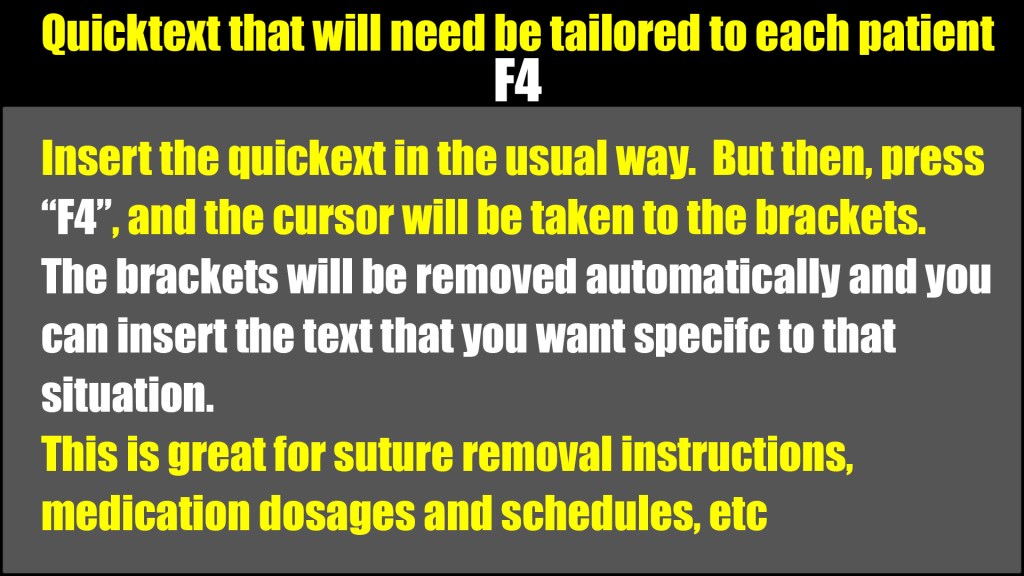
When you insert a quicktext with empty brackets, you can press F4 or a forward arrow button (see below), and your cursor will immediately be taken to those brackets. The brackets go away and you are left in the spot where you need to enter the text specific to that patient.
It makes quicktexts more helpful when most of the information is general, but one element is specific and needs to be updated in every case.
If you have more than one set of brackets, pressing F4 will take you to the first, then pressing again will take you to the next and so on.



 Searcy EM